VS Code Chat with Inference
VS Code Chat can connect to Serenity* Star's self-hosted inference models through the OpenAI-compatible Responses endpoint. You can register an inference model as a custom model and then chat with it from the Chat view while you code.
This page explains how to add an inference model as a custom model inside VS Code Chat. BYOK models work without a GitHub account or a Copilot plan, although some VS Code features, such as inline suggestions and semantic search, still require GitHub Copilot.
Prerequisites
- Visual Studio Code installed. Download VS Code
- VS Code Chat enabled. See AI language models in VS Code for information about using Chat and adding your own language models.
- A Serenity* Star API key (see API Keys). Important: the API key (or user) must be authorized to run AI Services.
- The model name of the inference model you want to use, for example
qwen/qwen3.6. See Selecting the model.
How it works
VS Code Chat's custom models live under the customendpoint vendor. Each model points at a full inference URL (including the model and the /responses path) and carries its own capabilities and limits. Because inference selects the model from the URL path, each model is a separate endpoint entry with its own url. The configuration is stored in a chatLanguageModels.json file in your VS Code user profile. The command palette flow below creates the endpoint and opens that file for you to add your models.
Configuration
- In VS Code, open the command palette (
Ctrl+Shift+P/Cmd+Shift+P) and runChat: Manage Language Models.

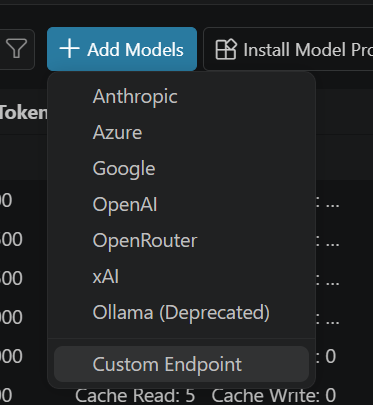
- Click Add Models and choose the Custom Endpoint option.
- When prompted for the group name, enter anything you like, for example
Serenity* Star Inference. - When prompted for the API key, paste your Serenity* Star API key.
- When prompted for the API type, choose Responses.
- VS Code opens
chatLanguageModels.jsonso you can configure the models. Add your inference model using the example below, then save.
[
  {
    "name": "Serenity* Star Inference",
    "vendor": "customendpoint",
    "apiKey": "${input:chat.lm.secret.inference}",
    "apiType": "responses",
    "models": [
      {
        "id": "qwen/qwen3.6",
        "name": "Qwen 3.6 (Inference)",
        "url": "https://api.serenitystar.ai/api/v2/inference/qwen/qwen3.6/responses",
        "toolCalling": true,
        "maxInputTokens": 128000,
        "maxOutputTokens": 32000,
        "apiType": "responses",
        "zeroDataRetentionEnabled": true
      }
    ]
  }
]
| Field | Notes |
|---|---|
vendor | Always customendpoint for an OpenAI-compatible endpoint. |
apiKey | Your Serenity API key. The ${input:...} form prompts for the value and stores it in VS Code's secret storage instead of in plain text. |
id | The inference model name. The body model field is ignored (the URL path selects the model), but VS Code still requires an id; use the model name for clarity. |
name | A friendly display name shown in the model picker. |
url | The full inference Responses endpoint, including the model and the path: https://api.serenitystar.ai/api/v2/inference/{model}/responses. |
apiType | responses, matching the endpoint in url. |
toolCalling | Set true if the selected model supports function calling. |
maxInputTokens, maxOutputTokens | Context and output limits for the selected model; adjust to the model you target. |
zeroDataRetentionEnabled | Required when using the Responses API. |
zeroDataRetentionEnabled: true for the Responses APIInference does not persist conversation state server-side. With the Responses API, clients can otherwise reference a stored prior turn by its response ID, which the inference endpoint has no record of. Setting zeroDataRetentionEnabled: true tells VS Code to send the full conversation on every request rather than relying on server-side retention, so multi-turn chats work correctly.
Select the model
Once you save chatLanguageModels.json, open the Chat view, open the model picker above the chat input, and select your inference model. Reload VS Code if it does not appear immediately.
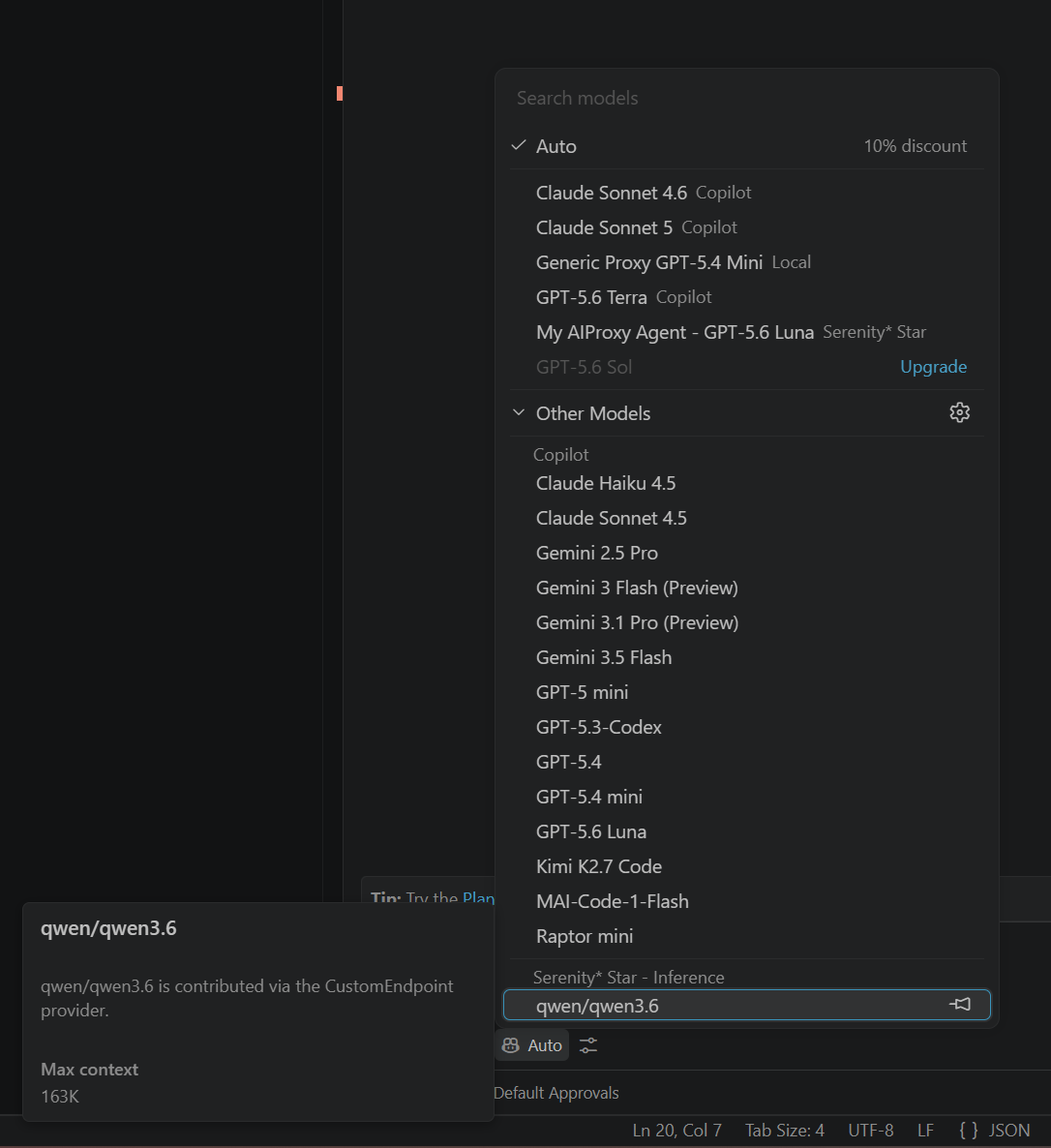
You can then type into the Chat input as usual. Your prompts will be answered directly by the selected inference model.